Learn how to buy a domain in Wix, choose the right plan, connect your site, and see what Julian’s hands-on test revealed about setup time.
Why a Custom Domain Matters
A custom domain makes a Wix site look more professional and easier to remember than a default Wix address. It is mainly a branding and credibility upgrade, and it also gives you a cleaner foundation for search visibility when paired with solid on-page SEO.
If you are still building the site itself, start with this Wix website tutorial. Once your domain is connected, use this Wix SEO basics guide before you publish.
If you want to follow the same platform shown in the tutorial, you can Try Wix for free.
What Julian Actually Tested in the Video
The transcript shows a real Wix checkout flow rather than a generic overview. Julian finished a site setup, clicked Done, then selected Connect your domain inside Wix.
From there, he tested several domain ideas:
- julianweber.com was already taken.
- Wix indicated it could be transferred if it was already his.
- Wix also suggested alternatives such as julianweber.online.
- julian-weber.com was also taken.
- A tutorial-themed variation was available, and he clicked Get It.
He also shared his preference for a personal-brand domain when your name is easy to spell. More broadly, he recommended names that are easy to spell, easy to type, short, and simple, while avoiding numbers and special characters.
One useful detail from the demo: Julian suggested using ChatGPT as a brainstorming helper if you are stuck on names. He specifically referenced asking what makes a good website domain, then agreed with the core advice it returned: keep it relevant, short, and easy to type, choose a solid extension, and think about keywords.
Before You Buy: What You Need
Before you can use a custom domain on Wix, make sure you have:
- A Wix site you are ready to connect.
- A short list of possible domain names.
- A paid Wix plan that supports connecting a custom domain.
- A payment method ready for the upgrade and domain checkout flow.
If you plan to sell products, services, or downloads, think about that before choosing your plan. In the video, Julian says a store needs e-commerce functionality and payment acceptance, which is why he moved beyond the entry plan for the tutorial.
How to Choose the Right Domain Name
A good domain should be easy for real people to remember and type. That matters more than trying to be overly clever.
Best practices Julian supported in the tutorial
- Keep it short and simple.
- Use a name that is easy to spell.
- Avoid numbers and special characters.
- Think about relevant keywords if they fit naturally.
- Consider a personal-brand domain if your name is simple and memorable.
What to do if your first choice is taken
Wix will tell you if a name is unavailable and may suggest alternatives. In the video, when Julian searched a taken domain, Wix offered other extensions and also showed a transfer option for a domain he already owned.
That means you usually have three practical paths:
- Try a close variation.
- Choose another extension Wix suggests.
- Transfer an existing domain if it is already yours.
Step-by-Step: How to Buy a Domain in Wix
1. Finish your initial site setup
In the demo, Julian first completed the site setup and clicked Done. That led to the option to connect a custom domain.
If your site is still in progress, you can still plan your domain now and connect it when the site is ready.
2. Click Connect your domain
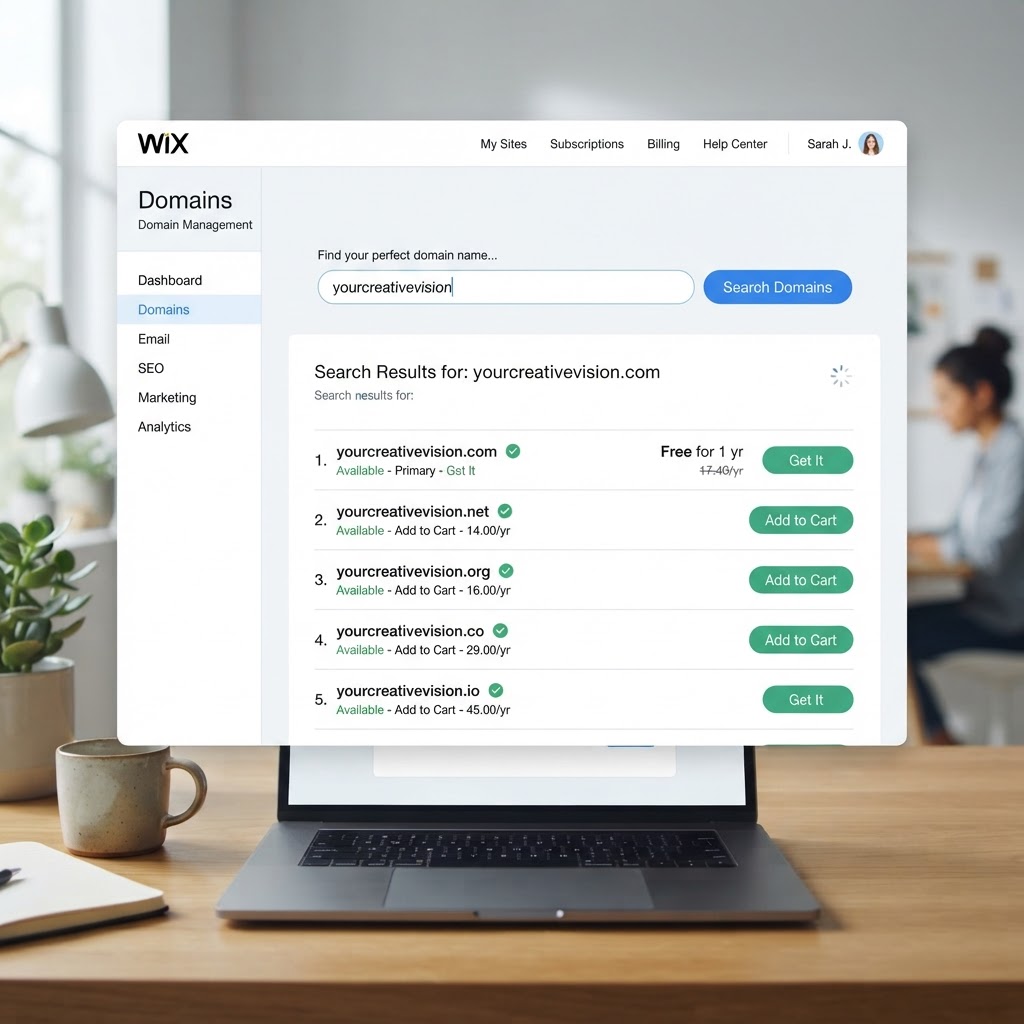
After clicking Done, he selected Connect your domain. Wix then opened the domain search page.
This is the point where you can either search for a new domain or explore options for a domain you already own.
3. Search for your preferred domain name
Type the domain you want into the Wix search bar. Wix will tell you whether it is available.
If it is taken, review the alternatives carefully instead of rushing into a poor replacement. A domain is easy to buy, but annoying to rebrand later.
4. Click Get It on an available option
When Julian found an available option, he clicked Get It. Wix then showed a message saying the domain was free with the Premium plan and prompted him to continue.
That is an important reminder to read the checkout screens closely. In the same walkthrough, the upgrade and domain flow also showed separate plan and domain decisions later on.
5. Upgrade to a plan that fits your site
Next, Wix moved him to the upgrade page. In the video, the plan screen highlighted:
- A 14-day money-back guarantee
- A custom domain
- No Wix branding
- 24/7 customer support and care
Julian’s recommendation was to start with the Light plan for a standard site, because it gives you a custom domain, some storage, and two collaborators. He said you can always upgrade or downgrade later.
If you are building a store, his advice was different: choose a plan with payment acceptance and basic e-commerce features. For that reason, he selected the Core plan in the tutorial.
6. Choose billing and complete payment
For the tutorial, Julian picked the monthly Core plan because he wanted to demonstrate store-related functionality. He then showed payment options including credit cards and PayPal, entered the required information, and completed checkout.
He noted that the payment confirmation happened almost instantly in his test. Right after that, Wix confirmed the site was on the monthly Core plan.
7. Finish the domain checkout
After the plan upgrade, he continued with the domain purchase flow. In the demo:
- He chose the domain for one year.
- Wix showed an optional full protection add-on.
- He declined that add-on and chose the basic option.
- The checkout showed 20.20 for that basic option.
Because the interface in the walkthrough showed both a free-domain message and a separate domain checkout flow, it is smart to review your own checkout screens carefully before paying.
8. Wait for the domain to connect
Once the purchase was complete, Wix showed that the domain could take up to 30 minutes to connect to the site. Julian tested the domain immediately, and the site was not live yet.
He also noted that in the past this could take much longer, sometimes up to 24 to 48 hours. So if your site does not appear right away, that delay can still be normal.

Which Wix Plan Makes the Most Sense?
Here is the decision framework Julian used in the tutorial:
| Plan | Best for | What Julian said |
|---|---|---|
| Light | Personal sites, portfolios, blogs | His general recommendation for getting started if you mainly need a custom domain and a professional site |
| Core | Stores and sites that need payments | Needed if you want basic e-commerce functionality and payment acceptance |
| Business / Business Elite | Growing businesses | He described these as more for growth, not something most people need from day one |
If your goal is content, a portfolio, or a small business website, starting lean makes sense. If your goal is selling online, skip straight to the plan that supports payments.
For a full selling setup after the domain step, this Wix eCommerce website guide is the most relevant next tutorial.
What Happens After You Connect the Domain?
The main technical step Wix handles for you is linking the domain to your site. In the video, Julian did not show manual DNS edits, nameserver changes, or SSL setup screens, so this walkthrough is best understood as the standard in-Wix purchase and connection flow.
Practically, here is what to expect next:
- Your plan upgrade is confirmed.
- The domain is assigned to the site.
- There may be a short waiting period before the site loads at the new address.
- You should publish the site if it is still in draft.
After the site is live, double-check your homepage, menus, forms, and mobile layout. A domain connection is a good moment to do a final quality check.
Common Mistakes to Avoid
Choosing a hard-to-spell name
If people cannot type it correctly, they will not reach you easily. Julian repeatedly favored simple, clear naming.
Picking the wrong plan for your goal
A personal site and an online store do not need the same plan. If you want to accept payments, do not assume the entry plan is enough.
Buying too quickly without checking alternatives
In the demo, two obvious versions of the name were already taken. Spend a few extra minutes comparing alternatives rather than settling for a confusing domain.
Expecting the site to be live immediately
Julian tested the new domain right away and it was not online yet. Give the connection time before troubleshooting.
Final Recommendation
If you are already building in Wix, buying the domain inside Wix is the simplest route. Julian’s test showed that the workflow is straightforward: search the name, upgrade the site, complete checkout, and wait for the connection.
My practical recommendation is simple: start with a short, easy-to-spell name, choose the Light plan for a standard site or Core if you need payments, and do not panic if the domain does not resolve immediately. If you are ready to set up your site and custom domain in one place, the easiest next step is to Try Wix for free.
● FAQ