Learn how to set up Wix email automations and newsletters, build simple follow-up funnels, and segment campaigns for better customer engagement.
Managing customer communication manually does not scale for long. If you already use Wix, you can set up email automations and newsletters inside the same platform instead of stitching together multiple tools. If you want to follow along inside Wix, you can try Wix for free.
What Wix email automation can do
In Julian’s walkthrough, the core use case was simple: when someone signs up through a newsletter form, Wix can automatically send a sequence of emails without you replying manually every time. He also points out that Wix includes one-off marketing emails for newsletters and promotions, so you can handle both evergreen follow-ups and occasional campaigns in one place.
That matters because these are two different jobs:
| Tool inside Wix | Best use |
|---|---|
| Automations | Triggered follow-up emails after a form submission, purchase, invoice, or similar event |
| Marketing emails | One-off newsletters or promotions you send to a segment or all contacts |
Julian’s overall takeaway was that Wix works well as an all-in-one communication setup. In his demo, he used the automation manager, email editor, contact targeting, and reply routing without needing a separate email platform.
Where to find automations in Wix
Julian showed two ways to get into automations:
- From the Wix dashboard, open Automations.
- From the site editor, click your newsletter form, open Form Settings, and go to the Automation tab.
In the demo, he first gave the homepage form a clear name so it would be easy to identify later. He used a label like newsletter box on homepage, then connected that specific form to an automated email flow.
That small organizational step is useful if you plan to run more than one signup form. It helps you know exactly which form triggered which email path.
Setting up your first Wix email automation
Julian’s example started after a professional email address had already been purchased and connected. From there, the setup flow looked like this:
- Open Automations.
- Choose a trigger based on form submission.
- Select the specific form you want to watch.
- Add the action send an email.
- Verify your sender email address.
- Edit the email design and content.
- Save and activate the automation.
He specifically selected a trigger for when someone submits the newsletter form on the homepage. After that, Wix opened the automation manager, where he could edit the email that would be sent.
Sender verification and reply routing
One practical step in the video was sender verification. Wix sent a code to the email address, and after entering that code, replies to outgoing emails would go directly to his professional email inbox.
That is an important part of setup because it turns the automation into a real two-way communication channel. Instead of sending from a no-reply style system, you can receive answers in your normal inbox.
How Julian edited the email template
The email editor in the demo worked like Wix’s website builder: drag and drop, with editable text and styling controls. Julian showed that you can upload a logo, change headlines, edit colors, add links, and insert elements such as text, images, buttons, dividers, logos, videos, subscriber fields, and social media icons.
But his main recommendation was not “make it prettier.” It was the opposite for many businesses.
Best formatting approach by business type
Julian advised keeping emails as simple as possible if you run a service business, agency, coaching business, or a more personal brand. His reasoning was that heavily designed HTML emails can feel like promotions, which many readers delete quickly.
In the demo, he simplified the template by:
- removing or hiding extra design elements
- deleting the button
- hiding social media sections
- left-aligning the message
- switching the background to white
- making the email look more like a normal personal email
He said this can make replies more likely because the email feels like something a real person wrote. For online stores, however, he recommended the opposite: polished promotional templates with product images and discount codes can make sense because ecommerce customers are used to that format.
A good rule from the video is this: match the design to what your audience expects.
Building an email funnel in Wix
Julian did not stop at one welcome email. He showed how to turn a single automated message into a simple funnel.
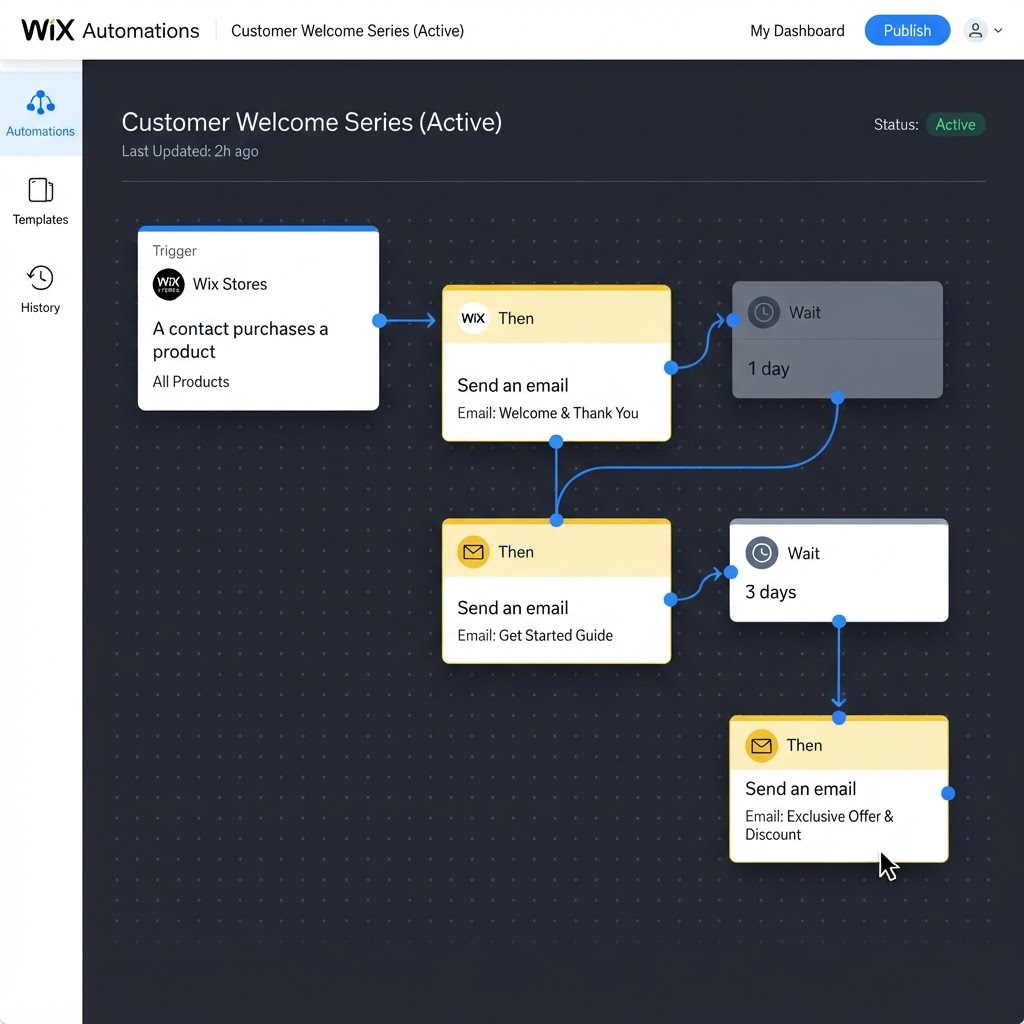
Inside the automation builder, he clicked the plus icon and added time delays between emails. His example sequence was:
- first email after signup
- then a 2-day delay
- then another email
- then a 6-day delay
- then another email
That is the basic funnel logic in Wix: trigger, wait, send, wait, send.
What to send in follow-up emails
Julian’s advice was to keep follow-up content tightly related to why the person subscribed in the first place. He gave examples from his own business context, such as:
- trends in web development
- common website mistakes
- ways to advertise a website
- website branding topics
- choosing a good domain
- useful website tools
The broader lesson is solid: stay on-brand and send material that fits your audience’s interests. He explicitly warned against sending unrelated personal updates or off-topic messages.
How often should you email?
The video’s guidance here was practical rather than formulaic. Julian recommended leaving some days in between messages instead of emailing every other day just because you can.
That matches the goal of a welcome sequence: stay in touch without wearing out new subscribers. In other words, consistency matters, but pacing matters too.

Using conditions to segment subscribers
Wix automations are not limited to a straight line of emails. Julian also showed that you can add conditions.
In his explanation, a condition could branch based on details like:
- where the person submitted the form
- whether they subscribed on the homepage or through a lead magnet
- when they submitted, such as weekend versus weekday
If a contact meets the condition, they can receive one email path. If not, they can receive a different one. That gives you a more relevant follow-up system without having to manually sort people later.
For readers building out more of Wix’s communication stack, it also helps to pair email with live messaging. This guide on how to install and setup Wix Chat for better engagement covers the chat side of that workflow.
Automations vs one-off newsletters in Wix
Julian made a clear distinction between automated funnels and marketing campaigns.
Automations
Automations are for events that happen repeatedly. In the video, the main example was newsletter signup. He also mentioned browsing built-in automation templates for things like purchases or invoice reminders, so some business flows can be activated without building from scratch.
Marketing emails
Under Marketing > Email, he showed how to create a one-off campaign. His example was a January newsletter. The workflow was:
- Create the email and enter the content.
- Click Next.
- Choose recipients.
- Send to all contacts or a target group.
- Preview the email.
- Review the subject line and sender details.
- Send a test email.
- Click Send now when ready.
He explained that target groups can be segments or labeled contacts, such as new clients, last year’s clients, or existing clients. This is useful for sending different updates to different audiences instead of blasting everyone with the same message.
What worked well in the demo
Based on the walkthrough, Wix’s strongest points for email communication are:
- native integration with forms and site tools
- drag-and-drop editing similar to the website builder
- multi-step flows with delays
- conditional branches for more tailored follow-up paths
- audience targeting for one-off campaigns
- reply routing to a professional inbox after verification
Julian also liked that these tools live inside the same system as Wix chat, inbox, and contact management. If you are weighing that all-in-one approach against other builders, this Base44 vs Wix comparison can help you think through the trade-offs.
Limits of this walkthrough
A careful note on scope: the video demonstrates setup and workflow, but it does not verify current sending limits, pricing tiers, analytics depth, deliverability features, or advanced reporting. It also does not benchmark Wix against specialist email platforms in a controlled test.
So the reliable takeaway here is about how the setup works and what Wix includes in the interface Julian used. For current plan details or feature changes, check Wix’s latest documentation inside your account before committing your full email operation to it.
Best practices to get better engagement
Here are the most useful, source-supported practices from the walkthrough:
- Name your forms clearly so automation triggers stay organized.
- Verify your sender email early so replies go to the right inbox.
- Use simple email styling for service businesses that want a more personal feel.
- Use polished promotional templates for ecommerce if that matches customer expectations.
- Space emails out with delays instead of sending too frequently.
- Keep content relevant to the reason people subscribed.
- Use segments and conditions so different audiences get different messages.
- Preview and test before activating or sending.
Recommendation
If you already use Wix, its email tools are worth setting up before you pay for a separate platform. Julian’s demo shows that Wix can handle the essentials well: triggered emails, multi-step funnels, audience segments, test sends, and reply routing from your professional address.
My recommendation is to start with one clean welcome sequence tied to your main signup form, then add one or two follow-up emails only after you know what subscribers actually want to hear. If you are ready to build that inside Wix, you can try Wix for free.
● FAQ