Build a website with Lovable AI step by step, from your first prompt and design edits to publishing, payments, security checks, and SEO.
Building a professional website used to require coding knowledge, design experience, or hours of manually moving elements around inside a traditional website builder.
With the Lovable Website Builder, the process is completely different. Instead of designing every section yourself, you describe the website you want. Lovable uses AI to create the layout, write the code, add pages, insert images, connect databases, and help optimize the finished site for search engines.
This tutorial walks through the full process step by step: signing up, prompting your idea, customizing the design, publishing, adding a contact page, connecting payments, running security checks, and improving SEO — based on what was actually demonstrated in the video.
What Is the Lovable Website Builder?
Lovable is an AI-powered website and application builder. You can create websites, web apps, dashboards, and other digital products by talking to an AI assistant — no coding required.
The main interface works similarly to ChatGPT or Claude. You describe what you want to build, and Lovable generates it. You then continue improving the project by giving additional instructions: add a new page, replace an image, change colors, embed YouTube videos, connect a payment provider, or run an SEO scan.
This makes Lovable particularly useful for beginners, entrepreneurs, content creators, freelancers, and small businesses that want to launch a website quickly.
How to Sign Up for Lovable
Create an account on the Lovable website. You can sign up with a Google account, an Apple ID, or an email address and password. After signing up, Lovable takes you to the main dashboard with a large prompt field where you describe what you want to create.
You will also see templates and example projects made by other Lovable users, but you do not need a template to get started.
Build Mode vs. Plan Mode
Before creating your website, Lovable lets you choose between two modes:
- Build Mode — Lovable immediately starts generating the website based on your prompt. Best for simple ideas or quick prototypes.
- Plan Mode — Lovable first asks follow-up questions before building: which sections the homepage needs, which social platforms to link, whether visitors can contact you. Better for more complex websites.
In the video, Plan Mode was used because it allows more input before generation begins, which helps shape the result more accurately.
How to Prompt Your Website Idea
The quality of your prompt strongly influences the quality of the output. Explain who you are, what your project does, which pages or sections you need, what visitors should be able to do, and any design preferences.
In the video, the following spoken prompt was used in Plan Mode:
I'm Julian Weber. I'm a YouTuber and I help people build websites and I make tutorials about different AI tools. I want a homepage where people see a little bit of me and my work, where I can showcase some of my videos.
Lovable then asked follow-up questions: which sections to include (hero, featured video, social, contact), whether videos should be hard-coded or auto-fetched, which social platforms to link, and how visitors should connect. After answering and clicking Approve, Lovable generated a plan and then a set of design directions to choose from.
You can type the prompt or use the microphone icon to speak directly. You can also reference the official Lovable documentation as you follow along.
Reviewing the First Version of Your Website
After approving the plan and selecting a design direction, Lovable builds the first working version — which in the video took roughly one to two minutes per stage.
The resulting homepage included a navigation menu, a hero section, an about section, featured videos, social links, and a footer. As expected, the first version contained placeholder content: placeholder images, example text, and — notably — Rick Astley's "Never Gonna Give You Up" as a sample video, since no real video links had been provided yet.
The initial homepage generation used 2.8 credits.
How to Replace Images and Videos
To customize the site, open the sidebar and describe what to change. In the video, this prompt was used:
I'm giving you a picture of myself. Please upload this in the hero section, and I will give you three videos — please replace the placeholder videos.
A photo was attached using the plus/attach button, and three YouTube video URLs were pasted into the prompt. Lovable uploaded the image and embedded the videos. The result: a picture in the hero section and playable YouTube videos on the homepage.
You can continue this process to replace any text, image, button, or section.
Is a Lovable Website Mobile-Friendly?
Lovable automatically creates responsive layouts. In the video, the mobile view was checked and described as "designed perfectly" without any manual repositioning. You can switch between desktop, tablet, and mobile views inside the editor to verify before publishing.
Lovable Pricing and Credits Explained
Lovable uses a credit-based system. Every AI generation or modification consumes credits. From the video:
- The free plan provides 30 credits per month, with a limit of 5 credits per day
- The initial homepage build cost 2.8 credits
- Adding a contact page cost 2.7 credits
- Paid plans offer 100 or 200 credits per month
The free plan is enough to build a homepage and make a few changes, but the daily limit of 5 credits means you may need to wait until the next day if you use them all. For faster iteration, a paid plan removes that constraint.
For a full breakdown of what the free tier covers, see the Lovable free plan guide.
How to Preview and Share Your Website
Lovable includes a preview mode where you can click navigation links, test buttons, and check forms before going live. You can also share the project by email or by copying a preview link — useful for getting feedback before publishing.
How to Publish a Lovable Website
When you are ready to publish, Lovable lets you choose a subdomain in the format
yourproject.lovable.app| Setting | Purpose |
|---|---|
| Favicon | Small icon shown in the browser tab |
| SEO title | Page title shown in Google search results |
| Meta description | Short summary shown below the title in search results |
| Social sharing image | Preview image when the link is shared on WhatsApp, social media, etc. |
For the social sharing image, a screenshot of the homepage works well if you do not have a purpose-made graphic.
After clicking Publish, Lovable runs a security scan automatically and then makes the site live. In the video, the full process from first prompt to a published homepage took under 10 minutes.
| Feature | Description | Cost (Credits) |
|---|---|---|
| Initial Homepage | Build full site from prompt | 2.8 |
| Contact Page | Build page with form and map | 2.7 |
| Free Plan | 30 credits per month | 5 per day limit |
| Paid Plans | 100 or 200 credits per month | Varies |
How to Add a Contact Page
You can add any page by describing it in the sidebar. The prompt used in the video:
I also want people to be able to contact me. I need a contact page where they can type in their email address and their message and send the email to me. Please also include a Google Maps preview — I will give you the address. People should see where our office is. Build an extra page and link it in the menu.
Lovable asked two follow-up questions: which email address should receive the messages, and whether to use a simple Google Maps iframe or the full API. The iframe option was chosen. The resulting page included a name/email/message form, office address, and a Google Maps embed. The contact page build used 2.7 credits.
Contact form submissions are stored in the project database, so you can review them inside Lovable under the database tab.
How to Edit Individual Elements
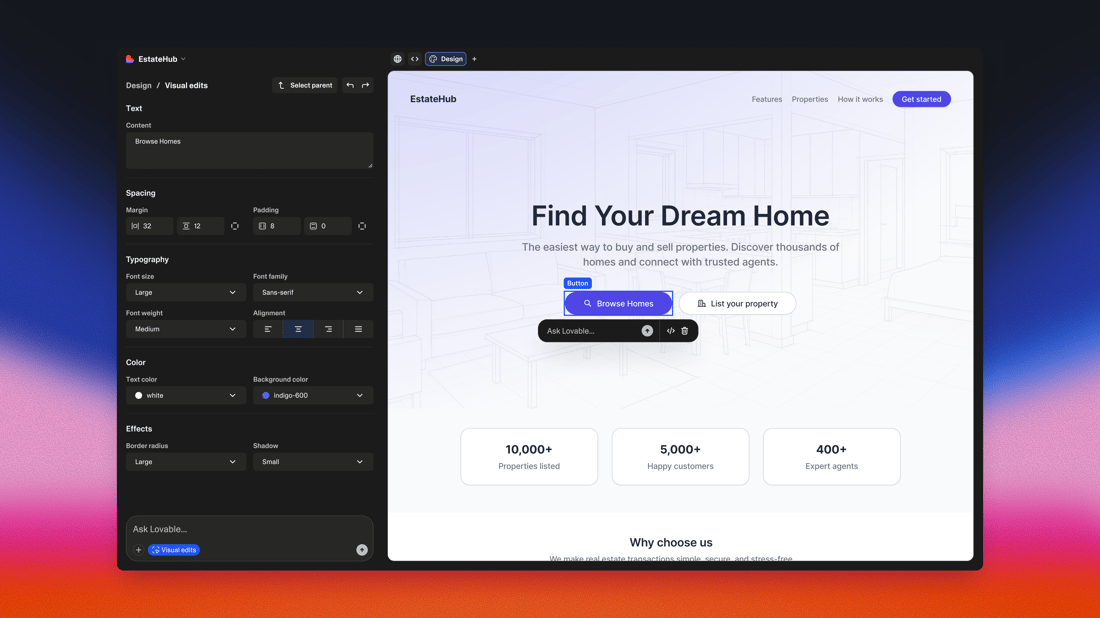
You do not always need to use the main chat to make changes. Lovable lets you select a specific element on the page — a text block, image, container, or section — and describe what should change. In the video, a contact section element was selected and asked to add placeholder opening hours, which Lovable generated automatically.
You can also directly edit short text fields without triggering a full AI rebuild, which is useful for small copy adjustments.
How to Undo Changes
Lovable keeps a full history of every change made to your project. If the AI produces a result you do not want, restore an earlier version from the history panel. This makes it safe to experiment with layouts, colors, new sections, or design changes.
How to View and Edit the Website Code
Lovable generates real website code, accessible through the Code view at the top of the interface. Developers can review, edit, and extend the generated code. Beginners should generally avoid manual edits — it is safer to ask the AI to make the change instead.
Analytics, Database, Emails, and Payments
Under the settings panel (accessed via the more/layers icon), Lovable provides several built-in tools:
- Analytics — visitors, bounce rate, traffic sources, device breakdown (desktop vs. mobile). Google Analytics can also be connected for more detail.
- Database — stores data collected by the site, such as contact form submissions. Each submission shows the sender's name, email, and message.
- Emails — configure branded email sending so replies and campaigns come from your domain rather than a generic address.
- Payments — connect Stripe for subscriptions, memberships, or one-time payments, or connect Shopify if you are selling physical products. You can describe the payment flow to the AI and it will build the required pages.
How to Run a Security Check
Lovable includes a security scan that checks for vulnerabilities — especially important for sites with user accounts, contact forms, payments, or private data. When the scan finds an issue, Lovable typically suggests a fix. You can ask the AI to apply it directly.
Run the security scan before publishing any site that handles sensitive information.

How to Use the Lovable SEO Scan
Lovable's built-in SEO scan checks page titles, meta descriptions, heading structure, image alt text, and other technical SEO settings. After the scan, you can choose to fix all detected issues automatically — Lovable will add missing headlines, fill in alt text, and adjust other technical basics.
This is useful for beginners, but automated fixes cover technical foundations only. Keyword research, quality content, internal links, and a long-term content strategy still require your own input.
Advantages and Limitations
Advantages
- No coding required — beginners can build complete websites without writing code
- Fast generation — a basic homepage can be live in under 10 minutes
- Responsive design — automatic layouts for desktop, tablet, and mobile
- Conversational editing — change anything by describing it
- Code access — developers can view and edit the generated code
- Built-in backend — database, payments, emails, and AI features included
- Integrated scans — security and SEO checks with AI-assisted fixes
Limitations
- Credit usage — every generation costs credits; frequent changes on the free plan mean hitting the 5-per-day limit quickly
- AI unpredictability — the AI can occasionally misunderstand a request or change more than intended; the history panel is essential
- Testing still required — anything involving payments, logins, or sensitive data needs careful manual testing before launch
- SEO still needs strategy — the scan handles technical issues but cannot replace content quality or keyword planning
Who Should Use Lovable?
Lovable is well suited for personal websites, portfolios, startup landing pages, SaaS marketing sites, small business websites, lead-generation pages, simple online tools, and creator sites. It is less suited to enterprise systems with strict infrastructure requirements or highly complex custom functionality.
If you want to see how Lovable compares with other AI builders before committing, the Lovable vs Base44 comparison and the Lovable vs Replit comparison break down the differences in detail.
Recommendation
Lovable is a genuinely capable AI website builder for anyone who wants to go from idea to published website quickly without writing code. The Plan Mode workflow, automatic mobile responsiveness, built-in contact forms, database storage, payment integrations, and the SEO and security scans make it a complete package for most personal and small-business website needs.
The main constraint on the free plan is the 5-credit daily limit. If you plan to iterate frequently or build something with multiple pages and integrations, a paid plan will remove that friction. Start with the free plan to test the workflow, then upgrade once you know what you want to build.
● FAQ